
Ultimate Disk Visualization Tool
Visualize Your Disk Space
QDirStat is a powerful disk usage analyzer that helps you find large files and folders instantly. Reclaim storage space with beautiful treemap visuals.
Powerful Features for
Smart Disk
Managemen
QDirStat combines beautiful visualization with powerful analysis tools. Find what’s eating your disk space and clean it up effortlessly.
Visual Treemaps
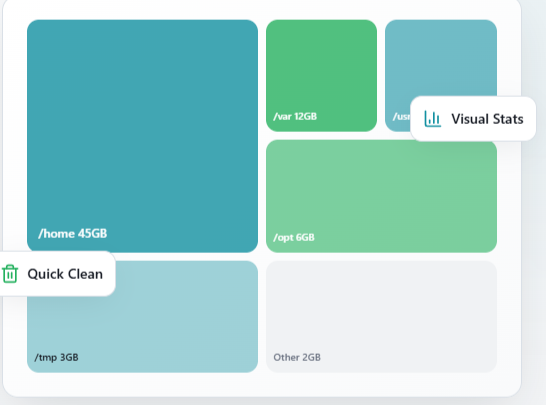
See your disk usage in colorful, intuitive treemap graphics.
Fast Scanning
Analyze thousands of folders in seconds with optimized algorithms.
Directory Tree
Browse your file system with a familiar hierarchical tree view.
Easy Cleanup
Delete unwanted files and folders directly from the interface.
File Type Stats
Discover which file types consume the most storage space.
Lightweight
Browse your file system with a familiar hierarchical tree view.
Refresh Anytime
Re-scan specific directories without starting from scratch.
Custom Themes
Choose colors that match your desktop environment.
Safe & Secure
Open source code you can trust. No data collection ever.
Why Users Love QDirStat
More than just a disk analyzer. QDirStat helps you take control of your storage and keep your system running smoothly.
Save Hours of Time
Find large files instantly instead of manually checking each folder.
Avoid Buying Storage
Reclaim gigabytes of space you didn't know you had available.
Boost Performance
A cleaner disk means faster system performance and boot times.
Beginner Friendly
Simple interface anyone can use. No technical skills required.
Make Informed Decisions
Understand exactly what's using your space before deleting.
Stay Organized
Develop better file management habits with visual feedback.
How QDirStat Works
Understanding your disk usage has never been easier. QDirStat breaks down the process into four simple steps.
Select a Folder
Choose any folder or drive you want to analyze. QDirStat can scan your entire system or specific directories.
Quick Analysis
QDirStat rapidly scans all files and folders, counting sizes and building a complete map of your storage.
Visual Overview
View results as a colorful treemap where each block represents a file or folder. Larger blocks mean bigger files.
Clean Up
Right-click any item to delete it, open it in your file manager, or exclude it from future scans.
How to Download QDirStat
QDirStat is a free, open-source disk usage analyzer for Linux systems. Getting started is simple. Follow these easy steps to install QDirStat on your computer and start reclaiming disk space today.
Step 1: Check Your System
QDirStat works on most Linux distributions. Make sure you have a working internet connection and administrator access to install new software.
Step 2: Open Your Terminal
Press Ctrl + Alt + T to open the terminal. You can also find it in your applications menu.
Step 3: Install Using Your Package Manager
Type the installation command for your distribution and press Enter. The system will download and install QDirStat automatically.
Step 4: Launch QDirStat
Find QDirStat in your applications menu or type qdirstat in the terminal. The program opens quickly and is ready to scan your drives.
Step 5: Start Your First Scan
Select a folder or drive to analyze. QDirStat will scan it and show you a beautiful treemap of your disk usage. Large files appear as bigger blocks, making them easy to spot.
Step 6: Analyze Large Files and Folders
Click on large blocks to see detailed file information. This helps you understand what is taking the most space on your system.
Step 7: Clean Up and Free Disk Space
After reviewing the results, safely delete unnecessary files or folders directly from QDirStat or manually using your file manager to reclaim disk space.
Ubuntu / Debian
Use apt to install from official repositories
sudo apt install qdirstatFedora / RHEL
Use dnf package manager
sudo dnf install qdirstatArch Linux
Use dnf package manager
sudo pacman -S qdirstatopenSUSE
Install via zypper
sudo zypper install qdirstatSystem Compatibility
| Device Category | Common Examples | Support Level |
|---|---|---|
| Smart TVs | Samsung, LG, Sony, Vizio, TCL | Excellent |
| Game Consoles | PlayStation 4/5, Xbox One/Series | Excellent |
| Mobile Apps | VLC, BubbleUPnP, mConnect | Perfect |
| Streaming Sticks | Roku, FireStick, Apple TV (Infuse app) | Very Good |
| Computers | Windows Media Player, VLC, Kodi | Native |
The Complete Qdirstat User Guide
1. Getting Started with the Treemap
When you first launch qdirstat and scan a directory, you will notice a vibrant, multi-colored grid at the bottom of the screen. This is the Treemap. Each rectangle represents a file. The larger the rectangle, the larger the file on your disk.- Clicking a rectangle highlights the file in the directory tree above.
- Colors are used to group files by their extension (e.g., .mp4 might be blue, .iso might be red).
- You can customize these colors in the settings menu to suit your preferences.
Standard Cleanup Procedures
A common problem for beginners is knowing what is safe to delete. Use this table as a quick reference guide:| Category | Safe? | Recommendation |
|---|---|---|
| Browser Cache | YES | Clear regularly to save space and speed up your browser. |
| Log Files | YES | Old .log files can be deleted safely if they are older than 30 days. |
| System Root Files | NO | Never delete anything in /bin, /etc, or /usr without expert knowledge. |
| Downloads | MAYBE | Check for duplicate installers and old setup files. |
2. Advanced Configuration: Custom Cleanup Actions
One of qdirstat’s hidden gems is the ability to define custom “Cleanup Actions”. In theCleanup menu, you can add shell scripts that perform specific tasks on the selected file or folder.
Example: You can create a command to automatically compress old media folders into .zip files or move large datasets to an external network drive with a single click.
3. Identifying Sparse Files and Hard Links
qdirstat is smarter than your average file manager. It correctly identifies Hard Links and Sparse Files. Hard links allow multiple names for the same file on disk, and qdirstat ensures it only counts the actual disk usage once, preventing double-reporting of space.What Users Say About QDirStat
Frequently Asked Questions
Q: What is QDirStat?
Q :Is qdirstat free to use?
Q: Does it support dark mode?
Q: Can it scan network drives?
Q: Is it safer than WinDirStat?
Q: How do I install QDirStat on Ubuntu?
Q: Can I install QDirStat from source?
Q: What are the dependencies?
Q: Is there a Flatpak or Snap version?
Q: How do I update QDirStat?
Q: How do I scan a specific folder?
Q: Can I scan external drives?
Q: How do I delete files from QDirStat?
Q: Can I exclude folders from scans?
Q: What do the colors in the treemap mean?
Q:Why is QDirStat not showing all files?
A:You might not have permission to read some directories. Try running QDirStat with sudo for a complete system scan.
Q:The scan is very slow. What can I do?
A:Slow scans usually happen with network drives or very large directories. Try excluding network mounts from the scan.
Q:QDirStat crashes when scanning. How do I fix it?
A:This can happen with corrupted filesystems. Run a filesystem check with fsck. Also ensure you have the latest version installed.
Q:Why do the sizes not match my file manager?
A:File managers sometimes show ‘disk space used’ which includes filesystem overhead. QDirStat shows actual file sizes.
Q:I deleted a file but the treemap didn’t update.
A:Press F5 or click the Refresh button to rescan the current directory and update the display.